
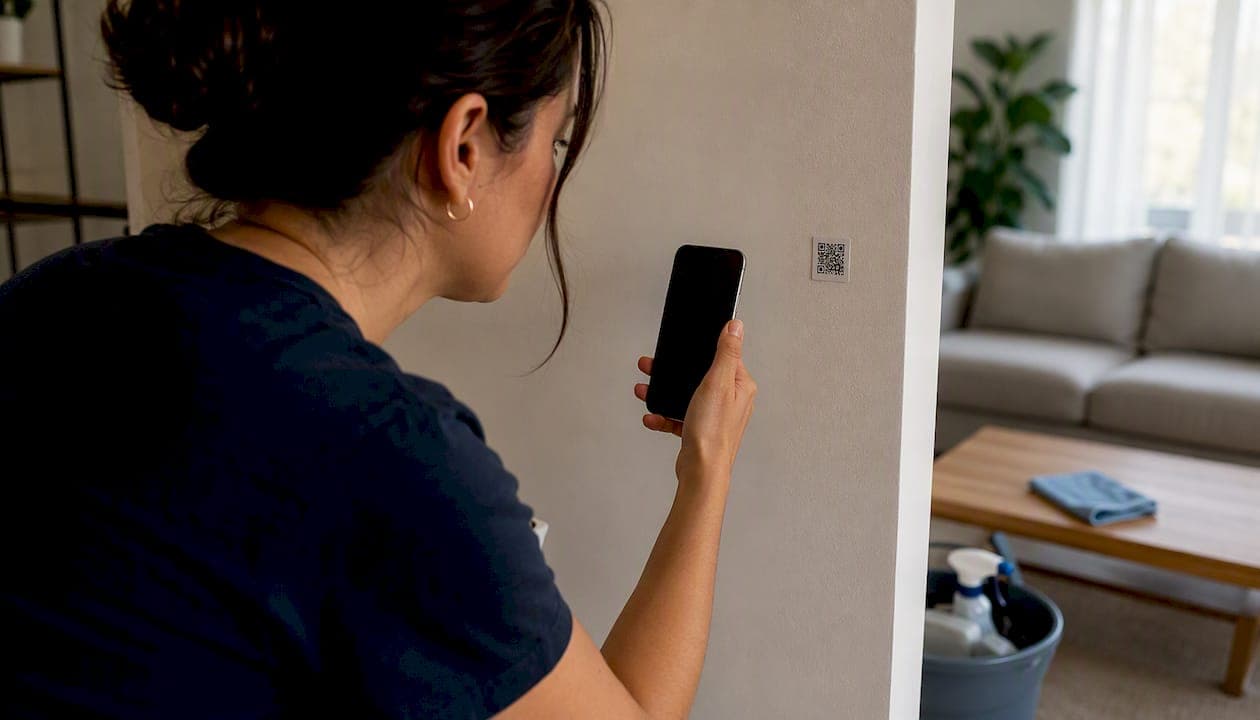
A QR code sign in for vacation-rental turnovers lets your cleaner scan a sticker with their phone camera and land straight on a time-stamped inspection checklist. No app, no login screen, no password to reset at 8 a.m. before check-in. The cleaner works through the checklist, snaps photos as they go, and hits submit. Turnivia turns that into an instant PDF report, and hosts running this workflow typically save 20 to 40 minutes per turnover compared to texting photos or filling out paper sheets. Start now: generate a QR code for one property or zone, attach a checklist template, and run your next turnover through it.
Key Takeaways
QR code sign in replaces app-based logins with a scan-to-start checklist that produces a time-stamped, photo-backed PDF report in minutes.
| Point | Details |
|---|---|
| No app required | Cleaners scan with their phone's native camera, so there's nothing to install or log into. |
| Time savings compound | Hosts typically save 20 to 40 minutes per turnover, which adds up fast across multiple properties. |
| Dynamic codes beat static ones | A dynamic QR code lets you update the checklist behind a printed sticker without reprinting anything. |
| Photos resolve disputes | Time-stamped, before-and-after photos give hosts and cleaners objective proof of condition at turnover. |
| Turnivia offers a low-risk start | A 14-day free trial lets you generate one QR code and test the workflow on two real turnovers first. |
Table of Contents
- How does the QR code sign in flow actually work?
- Why hosts, cleaners, and owners actually prefer scanning over apps
- Setting up QR sign-in: a checklist you can finish today
- What a cleaner does from scan to submit
- What to do when signal is weak or a code gets damaged
- Getting started: trial, pricing shape, and your first two turnovers
- Why I switched one property to QR checklists first
- Try Turnivia's app-free QR checklists for your next turnover
- Frequently asked questions about QR code sign in for turnovers
- Sources
How does the QR code sign in flow actually work?
The sequence has six moves, and none of them require a cleaner to touch an app store.
- You create the QR code. Inside Turnivia, you generate a code tied to a specific property or zone (kitchen, bathroom, hot tub) and attach a checklist template.
- The QR gets posted. A printed sticker goes on the fridge, inside a cabinet door, or near the entryway, which tends to be the spot cleaners check first anyway.
- The cleaner scans it. Any modern smartphone reads QR codes through the native camera app, so there's nothing to download and nothing to install.
- The checklist loads pre-filled. The scan auto-populates the property or zone ID, the correct checklist version, and the cleaner's ID if you've assigned one.
- The cleaner works the list. Each item gets marked done, and photos attach with an automatic timestamp baked into the file.
- The report generates. Submission triggers an instant PDF, complete with before-and-after photo fields and a server-side record of when everything happened.
If the cleaner is standing in a dead zone, the app captures the timestamp locally and queues the upload for the next signal. Nothing gets lost, it just waits.
Pro Tip: Test your own QR code before your cleaner ever sees it. Scan it cold, with no logged-in session, to confirm it opens the checklist you think it opens.
That 20 to 40 minutes saved isn't marketing fluff. It comes from cutting out the back-and-forth of texting photos, writing notes by hand, and reconstructing a report after the fact.
Why hosts, cleaners, and owners actually prefer scanning over apps
Everyone in the chain gets something different out of it.
- Hosts get a PDF report waiting in their inbox before the next guest checks in, instead of piecing one together from text messages.
- Cleaners skip app downloads, account creation, and remembering yet another password. They scan, work, submit.
- Owners get photo-backed proof of condition at turnover, which cuts down on he-said-she-said disputes over damage or missed tasks.
The time savings compound fast. Save 30 minutes on one turnover and it's a rounding error. Save 30 minutes on 40 turnovers a month across four properties and you've bought back a full workday. Time-stamped photo evidence also does double duty: it protects cleaners from false blame and protects hosts when a guest claims something was already broken. Standardized, photo-backed digital checklists turn a "he said, she said" into a dated file with a picture attached.
Setting up QR sign-in: a checklist you can finish today
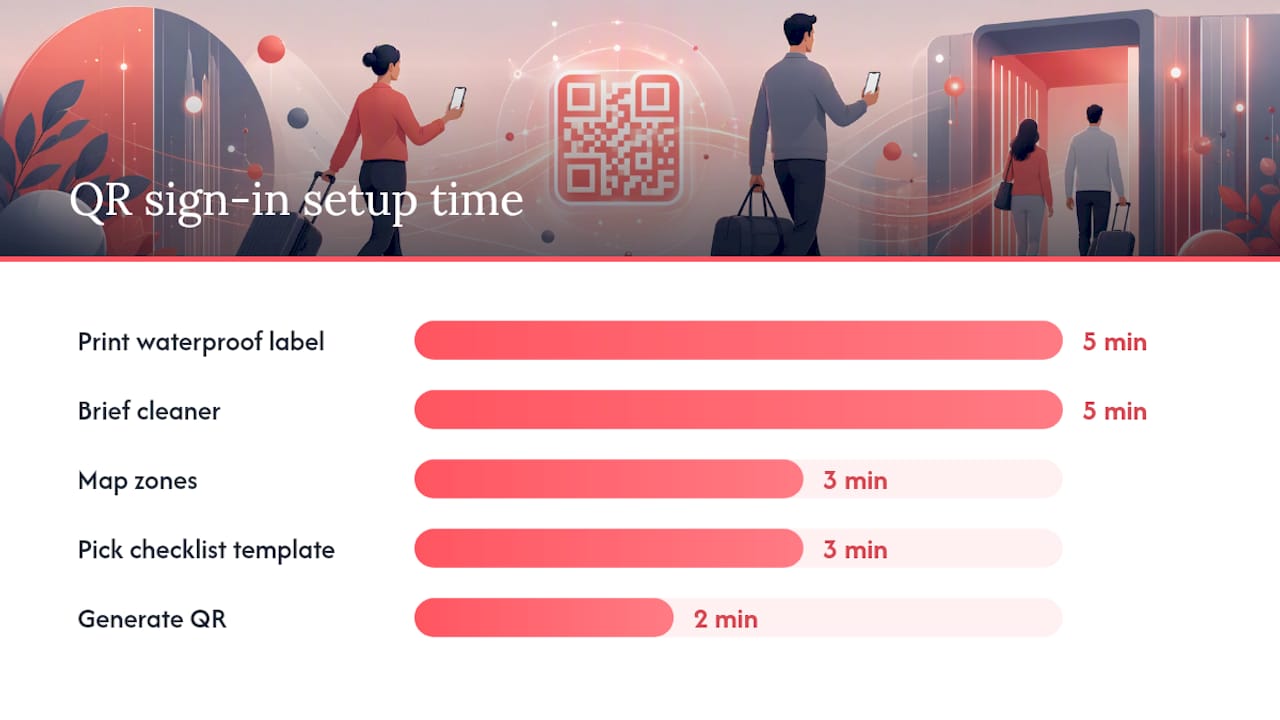
You don't need a rollout plan. You need about 15 to 20 minutes and a working printer.
- Generate the QR (2 minutes). Create one inside your QR code checklist dashboard.
- Map your zones (3 minutes). Decide if you're doing one code per property or one per zone. For anything bigger than a studio, per-zone codes work better because each code pre-fills the right checklist context instead of forcing the cleaner to hunt for the right section.
- Pick a checklist template (3 minutes). Start with a pre-built template rather than building one from scratch.
- Choose dynamic over static (decision point). A dynamic QR code redirects to an editable link, so when you update the checklist next season, the printed sticker still works. A static code means reprinting every time the checklist changes.
- Print on a waterproof label (5 minutes). Laminated labels or weatherproof vinyl hold up in kitchens and bathrooms where humidity and cleaning spray are constant.
- Place the sticker (2 minutes). Entryways and kitchen counters are strong picks because they're on the natural path a cleaner already walks through the property.
- Test the scan yourself (2 minutes). Confirm it opens the right checklist before your cleaner ever sees it.
- Brief your cleaner (5 minutes). One short conversation or a one-page printout covering photo expectations and what "submit" looks like.
Pro Tip: Check labels every few months for peeling or fading. A scuffed QR code that won't scan on a Saturday morning turnover is a bad time to discover the problem.
If you're managing more than one property, one code per zone beats one code per property almost every time. It's a little more setup work up front, but it means cleaners never end up filling out the wrong form for the wrong room.
What a cleaner does from scan to submit
For your cleaning staff, the whole process breaks into five steps:
- Scan the sticker with the phone's built-in camera. No app, no account.
- Confirm the property or zone shown on screen matches where they're standing.
- Work through the checklist, marking items as they go.
- Photograph flagged items and before/after shots — think stained carpet, a broken fixture, or a made-up bed as proof of completion.
- Submit. The PDF generates automatically and lands with the host.
Quick guidance that saves everyone a headache:
- Photograph anything that could become a dispute: stains, damage, missing items.
- Keep before-and-after photos from roughly the same angle so comparisons actually make sense.
- Don't rush the scan step. A blurry or angled photo of the QR code sometimes fails to read, and re-scanning costs more time than doing it right once.
Pro Tip: If a checklist item involves something breakable or expensive, like a TV mount or a hot tub cover, photograph it every single time, not just when something looks wrong.
Short checklists get finished. A pre-arrival checklist that fits on one mobile screen, with 5 to 10 items, sees far better completion rates than a long, detailed form nobody wants to scroll through on a phone.

What to do when signal is weak or a code gets damaged
Most problems here are minor and fixable in under a minute.
- No signal to submit: the app queues the report locally with the original timestamp and uploads automatically once connectivity returns.
- Sticker peeling or scuffed: replace it and flag the property for a fresh print run.
- Wrong checklist version loads: if you're using a dynamic QR code, update the destination link once and every existing sticker points to the new version.
- Multiple cleaners, one property: assign each person a unique cleaner ID or initials field at scan time, so reports stay attributable even when three different people rotate through the same unit.
On privacy: checklist photos should document the property, not people. Train cleaners to avoid capturing guests' personal items, IDs, or anything unrelated to the inspection itself, and set a reasonable retention window for stored reports rather than keeping them indefinitely.
Pro Tip: Give recurring cleaners a simple name or initials field instead of a shared login. It costs nothing to set up and saves you from guessing who did what during a dispute.
Getting started: trial, pricing shape, and your first two turnovers
Turnivia runs on a 14-day free trial, and you can start it directly from the product landing page without talking to sales first. Plans scale by property count, with overage charges if you generate more PDF reports than your tier includes, plus custom enterprise pricing for larger portfolios or agencies managing dozens of units.
Your first week should look like this:
- Sign up for the trial.
- Generate one QR code for your busiest property.
- Invite one cleaner and walk them through a single scan.
- Run two real turnovers as test cases before rolling it out further.
Two turnovers is enough to know if the checklist template needs tweaking before you commit to it across your whole portfolio.
Why I switched one property to QR checklists first
I didn't roll this out across every unit at once. I picked the property with the messiest turnover history, the one where I was constantly texting my cleaner asking "did you check the hot tub filter?" Within two turnovers, those texts stopped. The photos answered the question before I asked it, and the PDF landed in my inbox before the next guest's check-in window opened. If you're on the fence, don't overhaul everything at once. Pick one property, or even just one zone, and see how it changes your Saturday mornings.
Try Turnivia's app-free QR checklists for your next turnover
If you've been stitching together turnover proof from text threads and half-remembered phone calls, this is the fix. Turnivia gives cleaners app-free QR access to inspection checklists, captures time-stamped photos automatically, and turns every completed checklist into an instant PDF report the moment your cleaner hits submit.
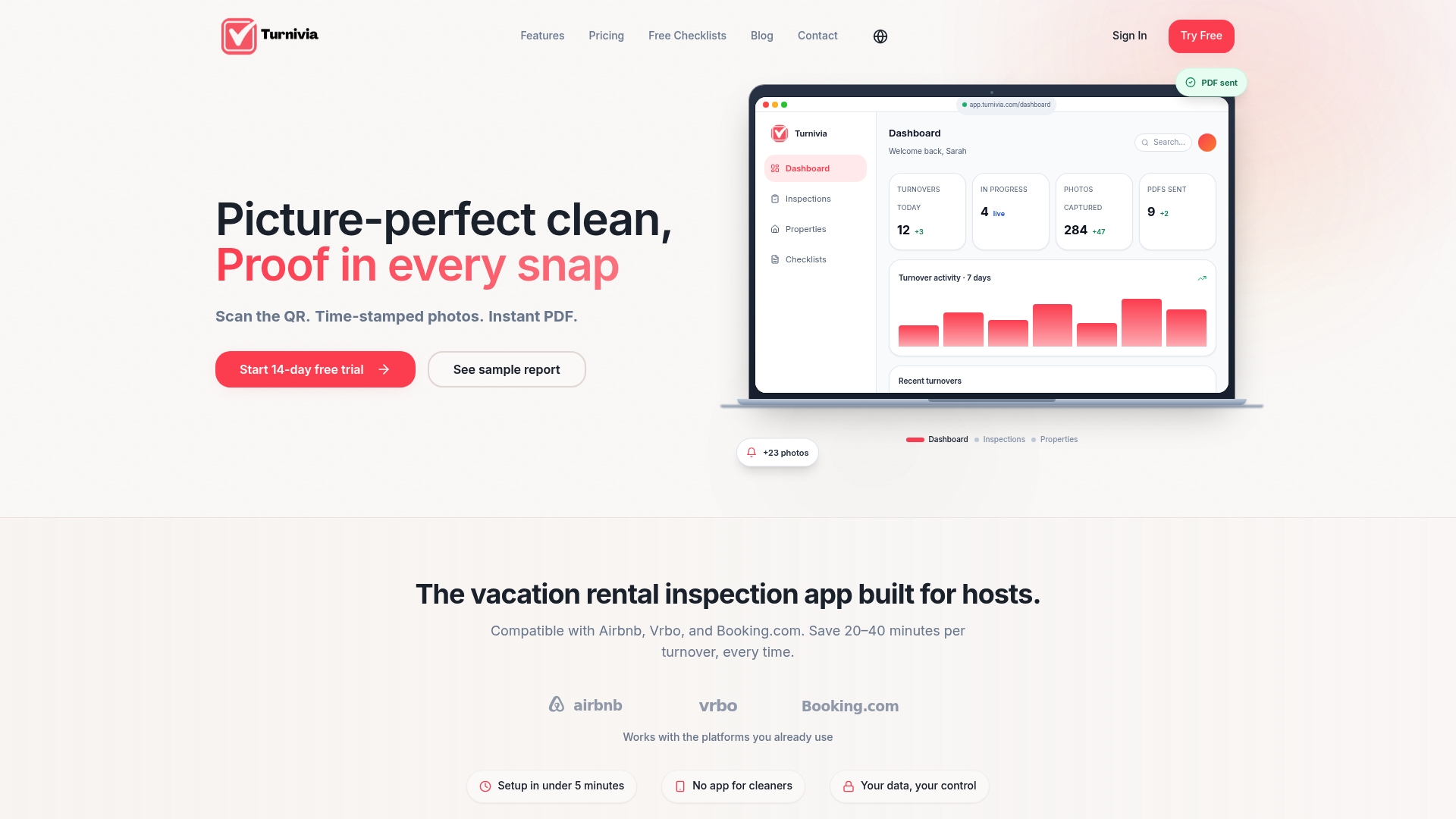
The core feature set: QR-code access with no app download for cleaners, time-stamped photo capture, instant PDF export, offline mode for spotty signal, and a library of ready-made checklist templates for different property types. Browse the free checklist templates to find one close to your property type, or start from the Airbnb turnover cleaning checklist if you're managing a short-term rental.
Start the 14-day free trial, generate your first QR code, and run it on your next scheduled turnover. If you want the full walkthrough first, the step-by-step guide covers setup for both hosts and cleaners.
Frequently asked questions about QR code sign in for turnovers
Does the cleaner need to create an account to use QR code sign in? No. Scanning the code opens the checklist directly in the phone's browser. No account, no password, no app store detour.
What happens if a cleaner has no signal during a turnover? The checklist still works. Photos and entries save locally with the correct timestamp, then upload automatically once the phone reconnects.
Can I use one QR code for the whole property instead of one per zone? You can, but per-zone codes tend to work better for larger properties since each one pre-fills the correct checklist section instead of making the cleaner scroll to find it.
How do I update a checklist without reprinting every sticker? Use a dynamic QR code. It redirects to a link you control, so editing the destination updates every printed label at once.
Is the QR code sign-in method secure for guest privacy? Photos should focus on the property, not people or personal belongings. Set a retention policy for stored reports and keep cleaner IDs simple rather than sharing login credentials across a team.
How fast can I get QR code sign-in running for one property? Most hosts finish setup in 15 to 20 minutes: generating the code, picking a checklist template, printing a label, and briefing the cleaner.
Sources
- Cleaning Service QR Codes for Work Verification | EZQR
- QR Codes for Vacation Rentals: 12 Smart Ways to Improve Guest Experience
- QR codes in short-term rentals | QRCodeKIT
- Boost Guest Satisfaction with Pre-Check-In Inspections - Property Management Blog | SnapInspect